Tech Support Questions
If you encounter any product issues or have technical questions not covered here, you can start a chat using the message icon in the lower‑left corner for faster assistance. You’re also welcome to contact our Customer Support Team at info@chefstemp.com.
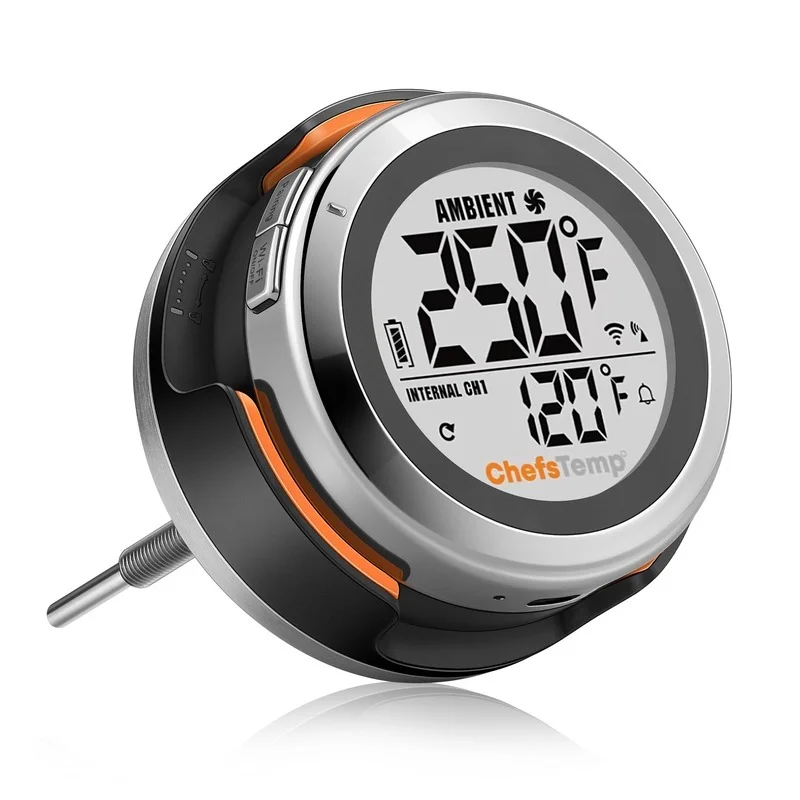
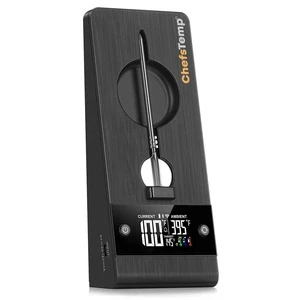
When charging your S1, a charging animation will appear on the battery icon. A flashing, fully charged icon indicates the S1 is completely charged.
A fully charged S1 provides at least 40 hours of usage. For optimal charging, use the original charging cable with a power source not exceeding 20W.
If your S1 isn’t fully charging or has a short battery life, try the following:
1. Use a different power supply and charging cable, then recharge the device.
2. Ensure your S1 firmware is updated to the latest version. Watch the firmware update tutorial here: ProTemp S1 Firmware Update
If the problem cannot be solved, please take a video of the charging progress and send it to info@chefstemp.com, and we will confirm and solve it for you.
You can reset your S1 by using a needle to press the Reset button next to the charging port. The reset will be complete when the screen briefly lights up. You can watch this video: ProTemp S1 Reset.
We suggest that you use the charging cable in the packaging for charging. Other charging cables may not be compatible, and please note that your charging head power should not exceed 20W. And please use a 5V/2A DC adapter for charging, and do not use an AC adapter. Otherwise, it may cause damage.
If the problem cannot be solved, please shoot a video of the issue and send it to info@chefstemp.com for confirmation.
- Keep ports dry: Before charging, make sure both the S1’s charging port and the charging cable are completely dry and free from moisture or oil.
- Avoid heat exposure: Do not charge the S1 on surfaces that have not fully cooled down, such as recently used stoves. Prolonged exposure to residual heat may compromise device safety.
- Charge before use: Ensure the S1 is fully charged prior to operation. Do not charge the device while it is actively being used on a grill.
- Use the original power sources: Always use the original charging block. Additionally, you can use a 5V⎓2A DC adapter and a Type-C charging cable.
- Make sure your S1 device is properly connected to the mobile app.
- You can click on “…” in the upper right corner of the main page, click on “My Connections”, then click on your S1 device, and then click on “Firmware Update” to check the firmware version. When a new firmware version is available, you can update the firmware here.
- Once the update is complete, the S1 will automatically restart. Return to the firmware page to confirm the update was successful.
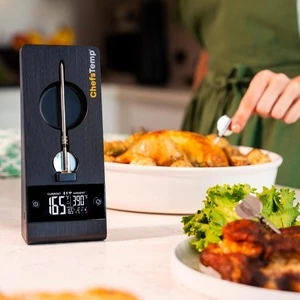
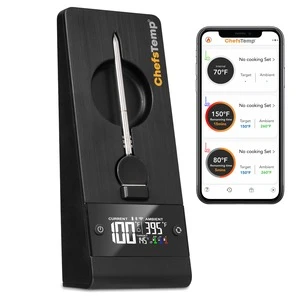
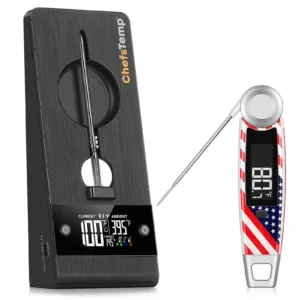
If your S1 does not display temperature data or display LLL, we recommend that you confirm whether the S1 Main Unit is correctly installed on the Base Unit and ensure that all contact points between the Main Unit and the Base Unit are in normal contact. You can watch our tutorial video to install it: ProTemp S1 Installation.
You can also reset S1 by pressing the RESET button next to the charging port to see if it can fix the issue. If it still fails, please take a video of the installation progress and send it to info@chefstemp.com, and we will check and provide you with a solution.
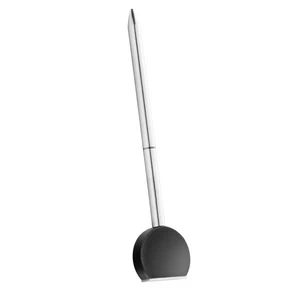
- When inserting the probe, make sure the tip goes past the safety line, but avoid placing the meat too close to the tail end.
- The tail end of the probe should not come into contact with the grill or any other surfaces.
- We recommend disconnecting all connections in the app and then reconnecting the probe to check.
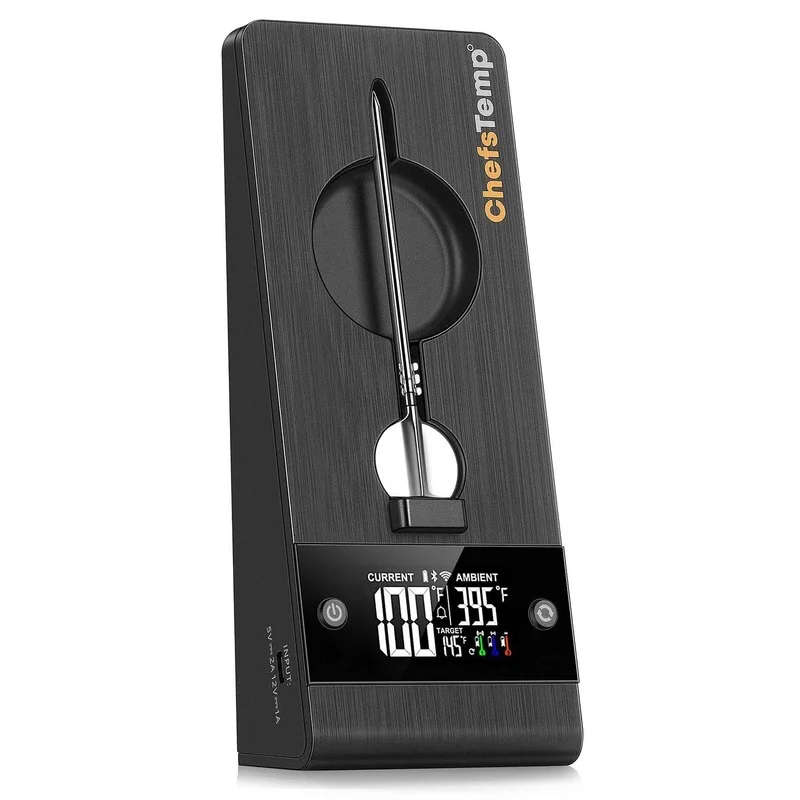
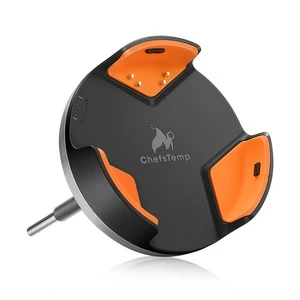
Please remove the fully-charged probe from the Charger or Plus Stand, and insert it into the slot again to activate it.
- Ensure your thermometer is turned on, and place it close to the probe so it can receive and transmit the signal properly.
- Before adding a probe, also ensure your thermometer is connected to Wi‑Fi through the app. The Wi‑Fi icon on the display should be solid (not flashing).
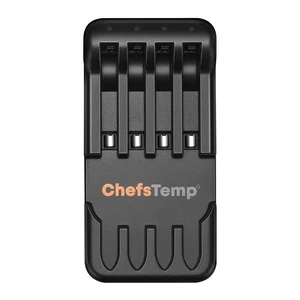
- Confirm that your probe is fully charged. When connecting, remove it from the ProTemp Plus Stand or 4‑in‑1 Charger, as Bluetooth cannot be detected while the probe is charging in the slot.
- Please note that each probe can only be connected to one thermometer at a time (either ProTemp S1 or ProTemp 2 Plus).
- Reset: You can reset your S1 by using a needle to press the Reset button next to the charging port. The reset will be complete when the screen briefly lights up. You can watch this video: S1 Reset.
- Check Charging Operations: We suggest using the original charging block and cable and ensuring the S1 is fully charged before each use. Do not charge the device while it is operating on a grill, as cooking temperatures exceed the safe charging range. Charging under these conditions may cause power or charging issues. How to Safely Charge Your ProTemp S1?